The notifications feature provides users with feedback from Engage around actions such as clearing trial campaign history, committing an Expression or running a campaign. Notifications can be seen popping up from the top-right corner of the screen.
The notifications include activity for all users and will incorporate scheduled campaigns, so any runs, both successful or failures, are notified to the user when signing in to Engage.
To clear all notifications click on the circled number and select Dismiss All.
You can also use Engage's task notification functionality to update team members of task progress via email and SMS.
-
Right click on an item, such as a campaign, cascade segmentation, or model within Engage.
-
Select Properties from the list of options.
-
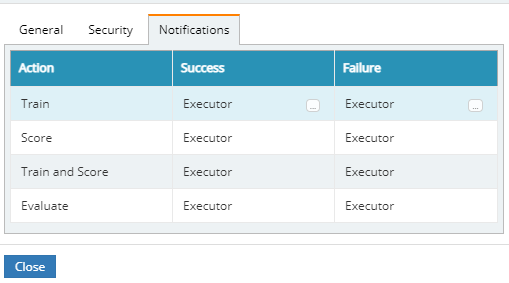
In the Properties window, click the Notifications tab.
-
Hover over an action to reveal an additional menu icon (three dots alongside the success and failure notification columns).
-
Click the three dots to open another window that allows you to configure notifications.
-
Click Add to open a list of available accounts to notify of task run success/failure.
-
Select the account to notify and click Add.
-
To remove an account from notifications, locate the account in the configure notifications window and select Remove.
-
Click OK when finished to save changes to the notifications.
Note: if adding an external account to the notification list, that person will be informed of activities/task run success or failure but will not have the ability to access Engage.